

Part 1: Check a live website
Check tutorials: Part 1 · Part 2: Coding agents · Part 3: Recordings and traces
Check whether a website is up, then save the result, screenshots, and browser actions in a recording. You don’t need a coding agent or a test script.
Before you start
Section titled “Before you start”You need Node.js with npm and a Vibium build that includes Check. Install Vibium using the installation instructions, then confirm:
vibium check --helpThe shell examples use Bash or Zsh on macOS or Linux.
These tutorials need Vibium 26.11 or newer. If your installed version has no
check command, update it (npm install -g vibium). To use a binary built
from a checkout instead, put ./clicker/bin/vibium in place of vibium
below. Build instructions are available for macOS and
Linux.
1. Configure AI access
Section titled “1. Configure AI access”Run and Check use Vibium’s own model configuration. Your coding agent’s subscription does not configure it automatically. This example uses OpenAI; for other providers, use the provider guide.
If you already have working settings, keep them and load them below. Otherwise, create a private settings file:
vibium config init# Wrote /Users/you/.config/vibium/ai.env (0600) — provider, model and API key for run and check# Edit it, then run vibium. Empty AI variables are loaded from this file.That writes a commented file readable only by you. Open
~/.config/vibium/ai.env in your editor and set:
export VIBIUM_AI_PROVIDER=openaiexport VIBIUM_AI_MODEL=gpt-5.6-solexport VIBIUM_AI_REASONING_EFFORT=noneexport OPENAI_API_KEY='replace-with-your-api-key'Use a model your API account can access. VIBIUM_AI_REASONING_EFFORT=none is
the right setting for this model; other OpenAI models may want a different
value, and Anthropic and Google models want it left unset. Keep export on
each line so the settings reach Vibium, and keep your actual key in the file
rather than chat or project source code.
Then run readiness in any terminal:
vibium readyWait for browser installation and AI checks to pass. Readiness checks browser
files without opening a browser. If one is missing, run the suggested
vibium install command, then retry. Other failures also include a suggested fix.
These shared settings work for both Run and Check.
2. Check a website
Section titled “2. Check a website”vibium check "https://var.parts is up"A browser opens and the result appears in your terminal. This Firefox run on September 7, 2026 returned:
CHECK: https://var.parts is up
PASS
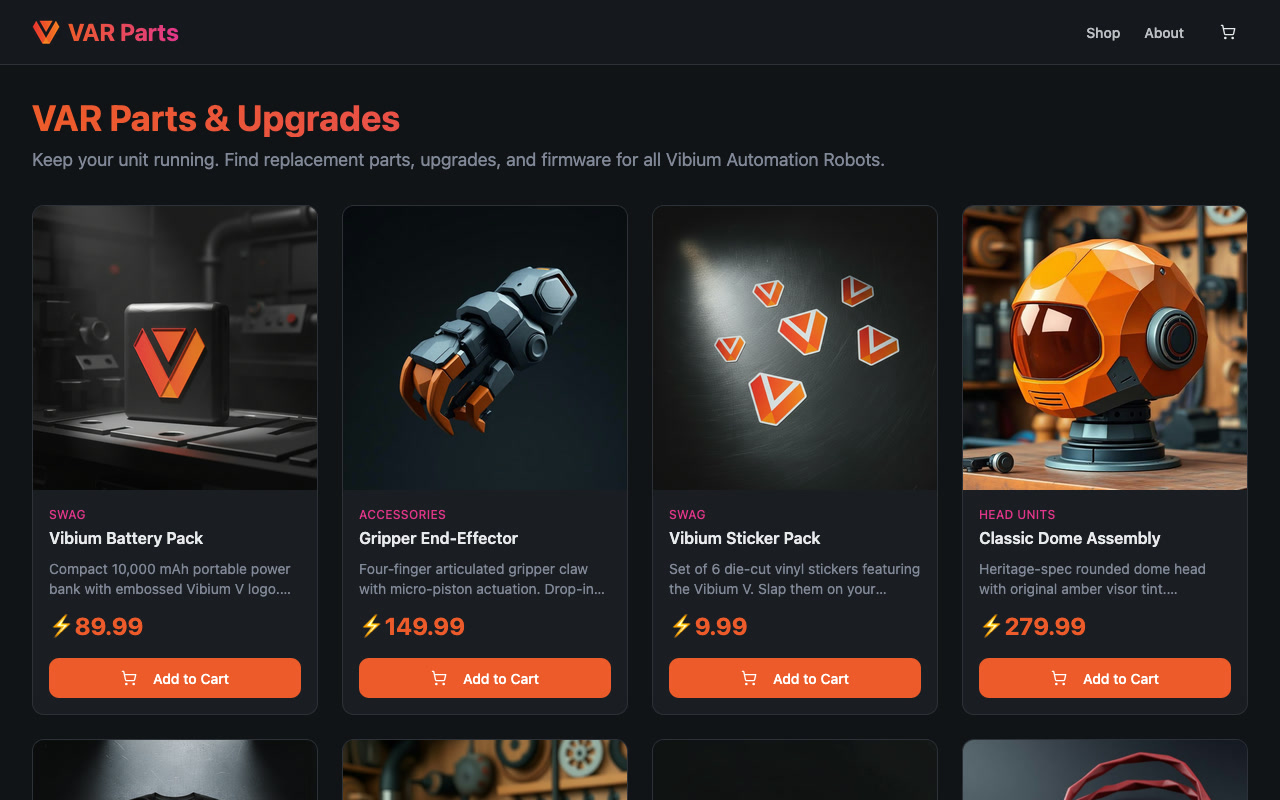
https://var.parts is up and serving its storefront page.- Navigation completed successfully at https://var.parts/.- The page rendered with the title “Vibium Shop — VAR Parts & Upgrades,” navigation, product listings, images, and buttons.
PASS means the evidence supports the claim. FAIL means it contradicts the claim. REVIEW means the model couldn’t decide. Your result may differ; this is a small availability check, not a test of every site feature.
A browser started by Check closes afterward. An existing Vibium browser stays
open. Add --keep-open to preserve a newly started browser too.
3. Save a recording
Section titled “3. Save a recording”Repeat the check with -o:
vibium check "https://var.parts is up" -o sitecheck.zipYou’ll get the verdict and evidence again, followed by:
Recording saved to sitecheck.zipOpen Record Player and drop the ZIP onto it. Expand the Check group to inspect the result and browser actions, and step through the screenshots. Use a new output filename for each run.
Here is var.parts after the Firefox check shown above:
Keep sitecheck.zip for Part 3.
Optional: include video with Firefox
Section titled “Optional: include video with Firefox”Once the browser from this exercise is closed, run the same check on Firefox to get video:
vibium install --engine firefoxvibium check "https://var.parts is up" -o sitecheck-firefox.zip --engine firefoxIf you used --keep-open, close that browser with vibium stop before switching
engines. An unrelated existing session should be preserved; finish this exercise
in a separate session if needed.
Firefox records WebM video from version 154; the release channel is well past that, so no channel flag is needed. Chrome currently records actions and screenshots without continuous video. Record Player can play the video from your ZIP.
Watch the var.parts check
This is the same Firefox run as the screenshot and PASS result above. The GIF preview plays at normal speed with fewer frames; the WebM is the original browser video.

Next, use Check with your coding agent, or check the saved recording.